Step 1 - Preparation
Create a spreadsheet with three headers.
Name, Class and UPN.
Ensure these are filled for each pupil.
If you do not have access to the UPN (unique pupil number) you can use any other unique number for example abc1, abc2, abc3.
(If you wish to create your own login names or passwords, you can add an additional column in your spreadsheet called Login and fill this for all of your pupils.)
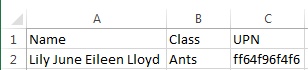
Click here to download this example .csv
Back in 2Lasso click on the Import wizard.

The Import window will open with the Excel data box.
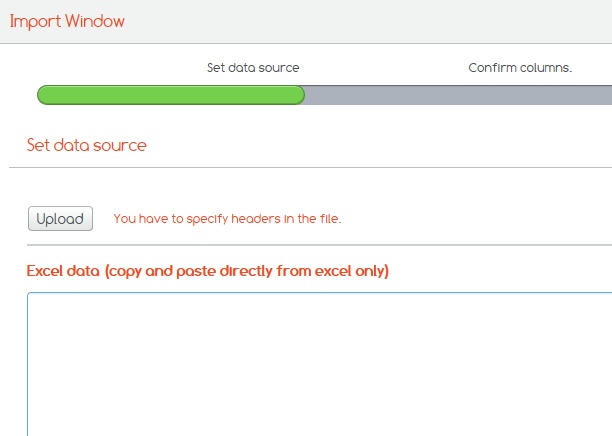
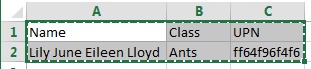
On your spreadsheet, here you have 2 options.
Highlight and copy your pupil information or save the file as a .CSV.
Step 2 - Uploading data to Purple Mash
In 2Lasso,
If you copied the data, paste the data into the Excel data box or if you saved the file, click the Upload button and upload your .CSV file.
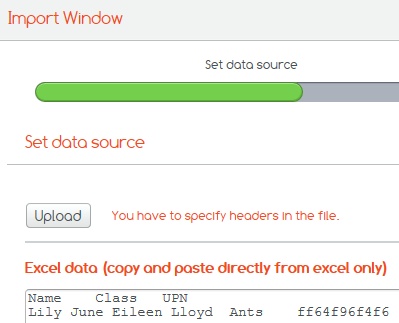
This may look untidy but it will be fine, click next.
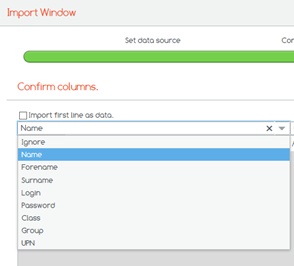
Here you will be able to confirm if 2lasso has picked up the correct column headers (Name, class etc).

If one of the headers are incorrect you will be able to click on the drop down arrow and choose the correct header title.
For example you may have used the header First Name where 2Lasso will look for Forename.
You may also have copied additional unneeded blank columns over, these will be highlighted in pink and have the header Ignore.
Step 3 - Generate Login name
After clicking next you will be offered 3 options for a login name.
Examples
Full name – LilyJuneElieenLloyd
Forename initial and Surname – Llloyd
Forename and Surname initial - LilyL
Select your preference and then click next.
If you wish to create your own login names, you can add an additional column in your spreadsheet called Login and fill this for all of your pupils.

Step 4 - Generate Password
Here you can select from 4 types of passwords for your pupil.
Example
Things – desk2548
Animals – owl4775
Colours – red4826
Picture Password – 8435 *
If you wish to create your own passwords, you can add an additional column in your spreadsheet called Password and fill this for all of your pupils.
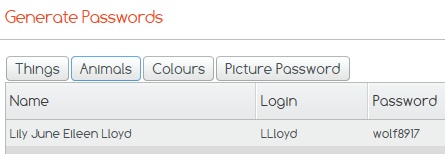
* Picture passwords show at this stage as a 4 digit number, however when you print the Pupil Login Cards, the password will show as 4 animals
and when the pupils logs in and clicks in the password field they will be given a selection of animals to click on.
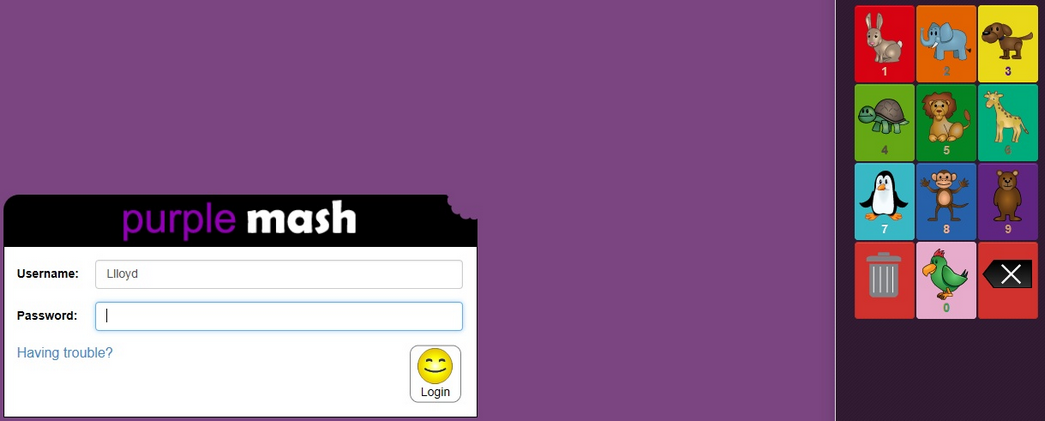
Once you have chosen your password and clicked next you will be at the confirmation screen.
Step 5 - Confirm and Complete
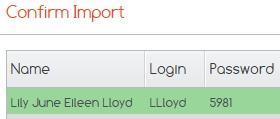
Here you can check if everything is correct and also you can see if there has been errors.
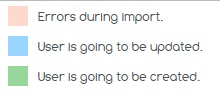
If everything is green then you are adding a new user.
If pupils are blue then you are editing a user that is already in 2lasso, if this is not what you wish to do, you may need to change the login name you have chosen.
If the pupils are pink there has been an error, if you hover your mouse over the pink pupils 2lasso will tell you the issue, examples could be missing data or duplicate data.
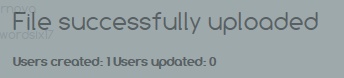
Finally click Finish and you will see the pop up below, make sure you look at the amount of users created or updated and make sure this is correct.
If you cannot find what you are looking for please feel free to email us at Support@2simple.com or call us on 0208 203 1781.